> For the complete documentation index, see [llms.txt](https://ledsak.gitbook.io/docs-for-ledsak/llms.txt). Markdown versions of documentation pages are available by appending `.md` to page URLs; this page is available as [Markdown](https://ledsak.gitbook.io/docs-for-ledsak/integrations/brevo.md).
# Brevo
### Overview
Brevo (formerly Sendinblue) allows users to send bulk emails efficiently using its API. This document outlines the process of configuring and sending bulk emails using the provided sender name, sender email, and API key.
### Prerequisites
Before sending bulk emails, ensure you have the following:
* A Brevo account
* A valid API key
* Sender email and sender name configured in Brevo
### **Step 1: Configure API Credentials in Brevo**
#### Create and manage your API keys
In this article, we will explain what an API key is and how you can create a new one or delete an existing one.
💡 Good to knowOnly Brevo users with **API keys permission** can access the [SMTP & API page](https://account.sendinblue.com/advanced/api), create a new API key, or delete an existing API key. To learn more about user permissions and permission levels, check our dedicated article [User permissions and permission levels in Brevo](https://help.brevo.com/hc/en-us/articles/360001096239).
#### What is an API key?
An API key is a code used to identify and authenticate an application or user. It acts as a **unique identifier** and **provides a secret token** for authentication purposes.
For example, you can use an API key to **connect your website or information system to Brevo**. This will enable you to automatically and manually trigger certain actions between the two.
With an API key, you can also **connect to our API** to automatically add new contacts, as well as do more complex tasks, such as:
* Creating and scheduling campaigns from the API.
* Exporting users that belong to particular lists.
* Exporting campaign statistics, etc.
To access the full list of commands that you can use with our API, check [our API documentation](https://developers.brevo.com/reference/email-campaigns-1).
#### Where can I find my API keys?
To protect your API keys and make them more secure, your existing API keys are **not visible** from your Brevo account. Only the last digits of the keys are displayed on the [SMTP & API page](https://app.brevo.com/settings/keys/api) so that you can distinguish between several keys if necessary:
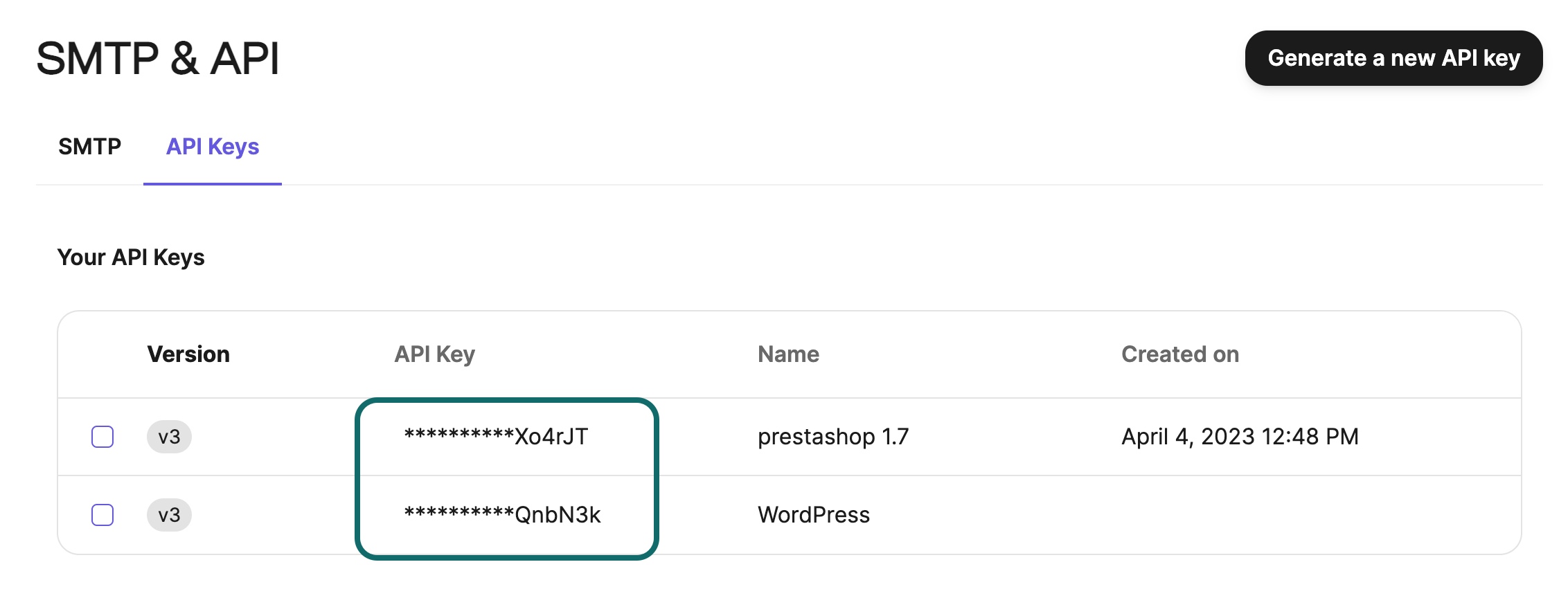
That's why we strongly suggest you store your API key in a safe environment when you create your API key. If you've lost your API key, we recommend you create a new one, store it in a safe environment, and replace the previous one.
#### Create an API key
💡 Good to knowThe account owner will receive an email notification, including details such as the IP address and location, whenever an API key is created or deleted from the account.
When configuring an integration with your Brevo account, you may need to create a new API key:
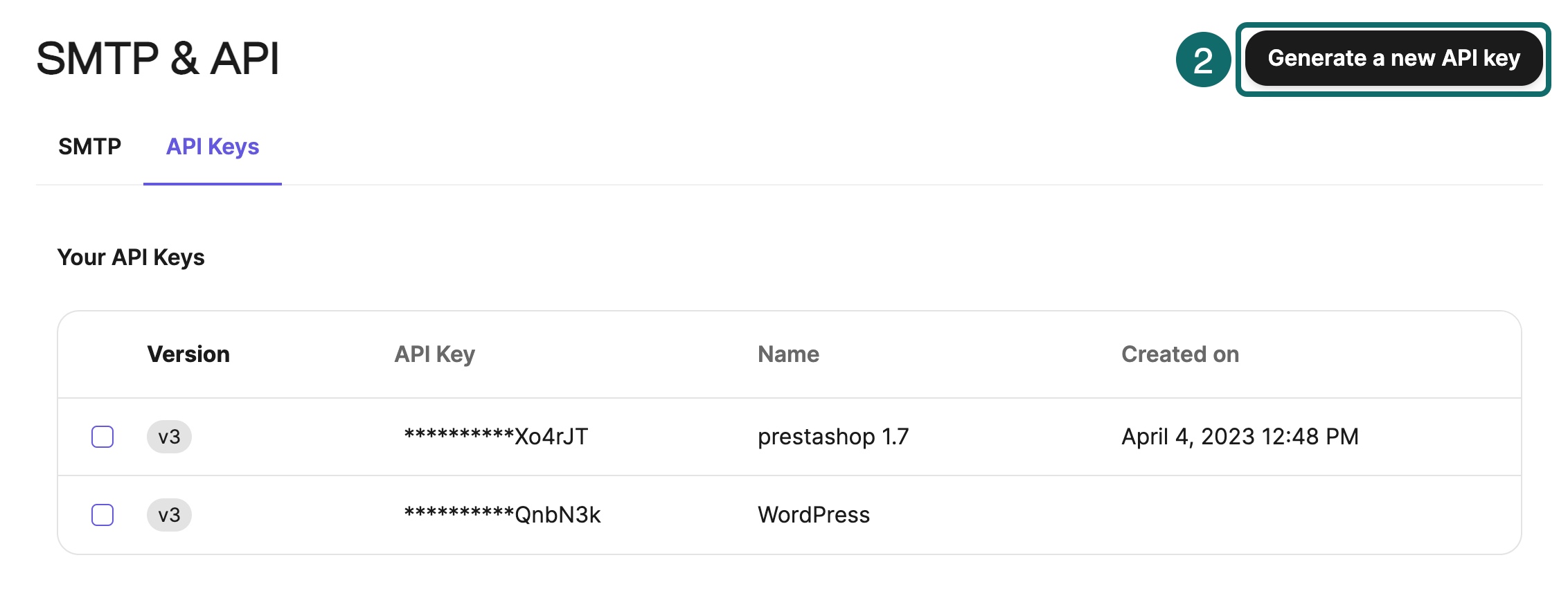
1. Go to [**Your account name** > **SMTP &** **API**](https://account.sendinblue.com/advanced/api).
2. Click **Generate a new API key**.\
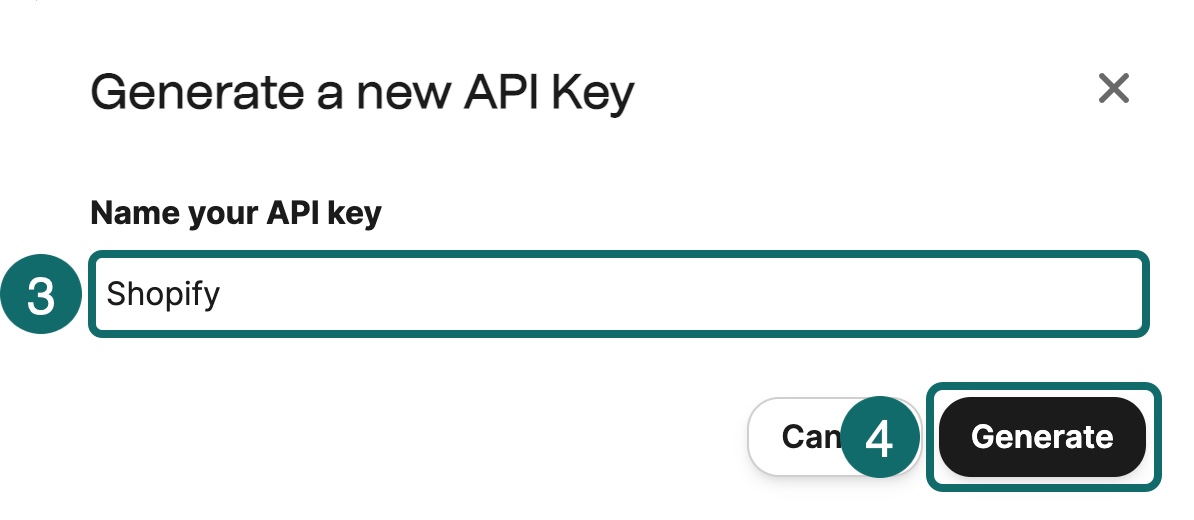
3. Name your API key. Make sure it specifies with which integration the API key will be used so that you can easily recognize it.
4. Click **Generate**.\
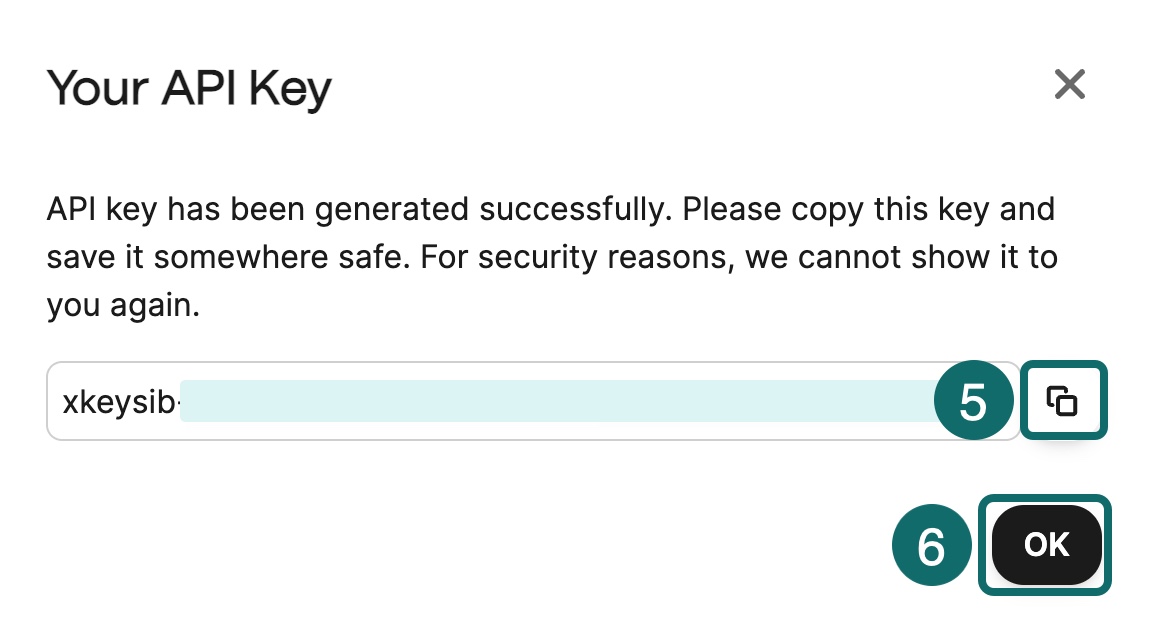
5. Copy your API key and store it in a safe environment.\
❗️ ImportantYour API key is **only visible during this step**. Once your API key is created, you won't be able to copy it anymore and you'll need to create a new one if you lose it.
6. Click **OK**.\
You have now successfully created a new API key.
#### **Step 2: Connect Brevo with Ledsak**
1. Log in to your **Ledsak** account.
2. Go to the **Integrations** section.
3. Select **Brevo** from the list of available integrations.
4. Click on **Connect** and enter the **API key** you generated earlier.
5. Follow any additional prompts to complete the authentication.
Brevo account to connect:
Click to Connect Brevo
#### Fill the Field:
Fill The API key
#### Connected Account:
Check the helath of the account.
#### View History
See the Sent History.
#### Send Bulk Email for multiple lead:
* Go to All Leads
* Select the Multiple Lead
* Click on Bulk Action
* Click on Bulk Email
* Select Template and Sent